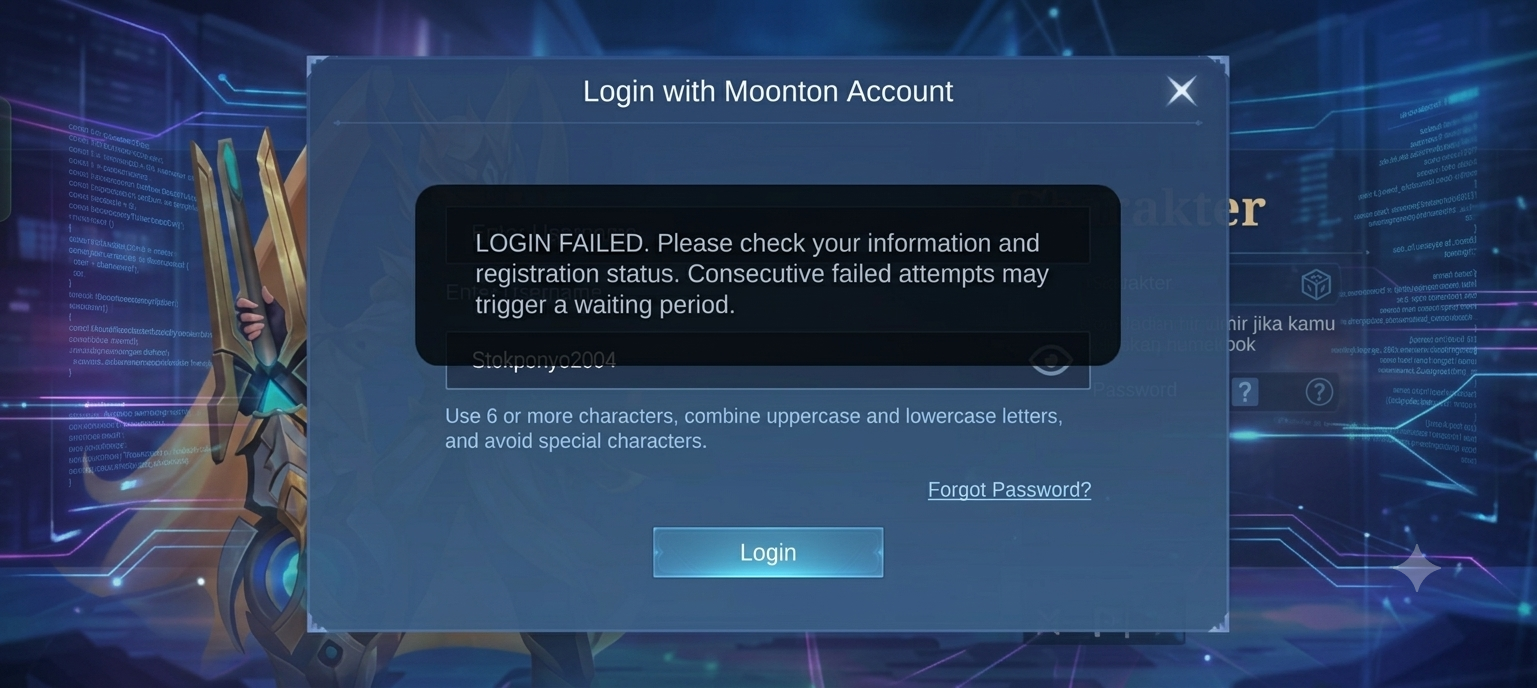
Can’t Log In to Your Moonton Account? Here’s How to Fix the “Failed to Connect to Server” Error in Mobile Legends (July 2026)
Moonton Login Failed is one of the most frustrating issues Mobile Legends players can encounter, especially when you’re about to jump into a ranked match. Instead of entering the game, you may see the “Failed to Connect to Server” error or find yourself unable to access your Moonton account. If you’re experiencing this problem, don’t worry—you’re not alone, and there are several proven solutions you can try.
Many Mobile Legends players have been experiencing this issue after the July 2026 patch update. Some players get stuck on the loading screen, while others can’t access their Moonton accounts or remain trapped in an endless “Connecting to Server” loop.
The good news is that this issue is usually not caused by your account being hacked or suspended. In most cases, it results from post-update bugs, corrupted cache files, unstable internet connections, or temporary server issues on Moonton’s side.
Before you panic, try the solutions below. One of them may help you log back into the game without reinstalling Mobile Legends.
1. Switch Your Internet Connection or Use Airplane Mode
The simplest and often most effective solution is to change your internet connection.
Sometimes, Moonton’s servers reject connections from unstable IP addresses. Switching networks can instantly resolve the login issue.
What You Can Do if Moonton Login Failed
- Try changing your internet connection first. Switching from Wi-Fi to mobile data can help refresh your connection to the Mobile Legends server.
- For players currently using mobile data, connecting to a more stable Wi-Fi network may solve the issue.
Still unable to log in? Continue with the following trick to improve your connection stability.
Enable Airplane Mode
- Turn on Airplane Mode.
- Wait for 10–15 seconds.
- Turn Airplane Mode off.
- Launch Mobile Legends and try logging in again.
This method forces your device to obtain a new IP address, which may provide a more stable route to Moonton’s servers.
2. Clear the Cache for Mobile Legends and Google Play Services
For Android users, the Moonton login system relies heavily on Google Play Services.
If Google Play Services is not functioning properly, Mobile Legends may become stuck on the “Connecting to Server” screen.
How to Clear the Cache
- Open Settings.
- Go to Apps.
- Find Google Play Services.
- Tap Storage.
- Select Clear Cache.
If the issue continues, tap Manage Storage and choose Clear All Data.
Next, repeat the same process for Mobile Legends, but only clear the cache. Avoid clearing the app data, as doing so may remove downloaded game resources keep trying if Moonton Login Failed again.
3. Use a Private DNS or the 1.1.1.1 App if Moonton Login Failed
If the issue is related to your Internet Service Provider (ISP), changing your DNS settings is often the fastest solution.
You don’t need a paid VPN. Simply configure a different DNS or use a free DNS application.
How to Change Your DNS
Go to:
Settings → Network & Internet → Private DNS
Select Private DNS Provider Hostname, then enter one of the following:
- dns.google
- 1dot1dot1dot1.cloudflare-dns.com
For an easier solution, you can also install the 1.1.1.1 by Cloudflare app.
Enable the app, launch Mobile Legends, and try logging in again.
Once you have successfully logged in, you can disable the app if you wish.
Also read this article about Honor of Kings:
4. Make Sure Your Device’s Date and Time Are Set Automatically
Many players don’t realize that even a slight difference between their device’s clock and the server’s time can prevent a successful login.
Moonton uses time synchronization as part of its account security system.
How to Check
- Open Settings.
- Navigate to Date & Time.
- Enable Automatic Date & Time.
Restart Mobile Legends and try logging in again.
5. Log In Using a Linked Account
If the Moonton login button is still not responding, you can temporarily bypass the issue by logging in with another linked account.
This method often works because it allows the game to synchronize your account before switching back to your Moonton login.
Steps by steps if Moonton Login Failed
- Log in using Google Play Games, Facebook, or TikTok, provided the account has already been linked to your Mobile Legends account.
- After entering the game lobby, open Profile.
- Go to Account Settings.
- Select Switch Account.
- Log in again using your Moonton email and password.
This workaround is particularly effective when Moonton’s login servers are experiencing minor issues.
Why Can’t I Log In to My Moonton Account?
Some of the most common causes include:
- Moonton servers are under maintenance.
- Bugs introduced by the latest patch update.
- Corrupted game cache.
- Google Play Services issues.
- Unstable internet connection.
- ISP routing problems affecting access to Moonton’s servers.
- Incorrect date and time settings on your device.
If the issue is server-related, many other players are likely experiencing the same problem.
When Should You Wait?
If the Moonton Login Failed error still appears after trying all the troubleshooting methods above, the issue may not be on your device. In many cases, the problem is caused by temporary server maintenance or unexpected technical issues on Moonton’s side.
This situation commonly occurs after major Mobile Legends updates, seasonal patches, or large in-game events when millions of players attempt to log in simultaneously.
Heavy server traffic can temporarily affect the authentication system, resulting in login failures or the “Failed to Connect to Server” message even if your internet connection is stable.
If this happens, it’s best to wait 30 minutes to 1 hour before trying again. Once the servers return to normal, the Moonton Login Failed error usually resolves without requiring any additional troubleshooting.
Conclusion
The “Failed to Connect to Server” error or being unable to log in to your Moonton account can be frustrating, especially when you’re ready to climb the ranked ladder or participate in the latest in-game events.
Fortunately, most login issues can be resolved without reinstalling the game. Switching your internet connection, clearing the cache, changing your DNS settings, synchronizing your device’s date and time, or logging in through a linked account are all effective troubleshooting methods.
If none of these solutions work, the issue is most likely on Moonton’s side. In that case, all you need to do is wait until the servers return to normal.
Hopefully, one of the methods above helps you get back into the game. Good luck, and enjoy your next ranked matches!
Source: Official Youtube Meteoz Hub